
How to Make a Backing Track Using Loops
Looking for a quick and simple guide to make awesome sounding backing tracks using loops? You’re in the right place.
In this guide, we’ll show you how to make a professional sounding backing track in just a few minutes using high quality drum loops recorded by some of the top session drummers in the business.
Why Use A Backing Track?
Practice
One of the most common reasons musicians like to use backing tracks is for practicing their instrument. Maybe there’s a certain key, tempo, style or time signature you’ve been passionate about improving, but you don’t know where to start. A backing track is the perfect solution.
Of course, this approach is nothing new or somehow limited to just using backing tracks. Players have been practicing along with their favorites records since the very beginning. Talk about the ultimate backing track. And, for those of us old enough to remember, listening to and playing along with records was basically one of the few ways to “play along.” Even the greatest players of all time like Ed Van Halen cut their teeth this way:
The guitarist was already well on his way to establishing himself as one of the best players in the genre. But he’d credit all of that to the teaching power of another. With no formal training, Van Halen instead learnt from his own record collection. When Guitar Player asked how he did it, he mimicked Eric Clapton’s solo in ‘Crossroads’ from Cream’s Wheels of Fire. He said, “I know that song note-for-note, and also ‘I’m So Glad’ [from Fresh Cream] and the live version of ‘Sitting on Top of the World’.” He added, “I used to know all that stuff.”
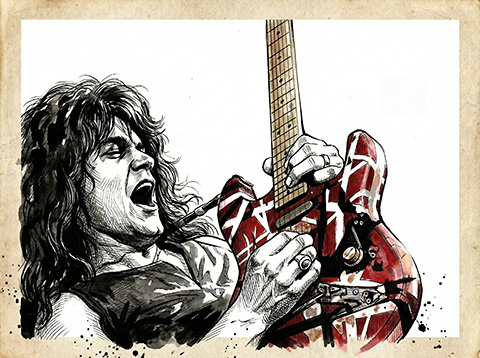 The guitarist was already well on his way to establishing himself as one of the best players in the genre. But he’d credit all of that to the teaching power of another. With no formal training, Van Halen instead learnt from his own record collection. When
 Writing & Production
Backing tracks and loops are amazing tools for helping you write and produce new music. Usually, it’s easier and more enjoyable to write music to an existing drum, guitar, keyboard, or bass track instead of starting from scratch. For example, you might be a guitar player and have a drum beat in your head but you can’t actually record it yourself. Using a loop played by someone that can is your best bet. While many guitarists and bassists are competent drummers (evidently, Paul McCartney was not the only drummer in the band), drummers are drummers for a reason. They have an entirely different sensibility about the instrument, an entirely different musical vocabulary, an entirely different way to interpret the time and feel. At the very least, an entirely different application of these ideas to the drum kit. Let the drummer do what they do best and benefit from it. Let them cook up some exciting grooves; you just worry about the tune.
Loops and backing tracks are great sources for new musical inspiration. If you are in a creative rut, a backing track might just be the thing you need to write your next hit.
It’s Fun
Let’s face it, playing with other musicians is just flat out fun. There’s NO substitute. You might not always be able to have physical musicians in the same room as you, but loops and backing tracks are the next best thing.
If you are like most musicians, there are probably artists you’ve always wanted to play with, but weren’t sure how to get in touch with them. Well, now you can. Beta Monkey has recorded professional loops with some of the world’s most talented drummer so you can create the ultimate backing tracks made up of a dream team of musicians.
Before moving on to actually constructing backing tracks of your own, we did mention playing to backing tracks can be just flat-out fun. That said, grab your instrument of choice and see what happens when you start playing along to this:
How to Make A Backing Track Using Loops
Step 1: You’ll Need a DAW Installed
You’ll need a Digital Audio Workstation (DAW) in order to drag and drop your audio loops into to begin creating your backing track. There are many DAWs to choose from depending on your needs and budget. Here is a list of some of the most popular:
Free Options:
- Garageband (Mac only)
- Reaper
- Audacity
Paid Options:
- Logic Pro (Mac only)
- Pro Tools
- Ableton Live
- Cubase
We’d recommend Reaper if you’re on a tight budget. It’s not technically “free” (though you can use it for quite some time for free – download it, use it, and you’ll see what we mean). However, if you use it and like it, it’s only $60 for a license. And, it’s literally one of the best digital audio production applications for computers, offering full multi-track audio and MIDI recording, editing, processing, mixing and more. Without exaggeration, it can do anything the way more expensive DAWs can do. In fact, because it is highly customizable, many musicians and recording artists prefer it (the ability to create and implement custom scripts is not likely something you’ll see in any of the the expensive, paid DAWs). Without a doubt, if you haven’t used Reaper, do yourself a favor and get it. Totally recommended.
For the paid DAWs, they all do what you will need to do to make music. Everyone’s got their go-to one and that’s fine. Not one listener will know or hear the difference between tracks made in Logic, Cubase, or ProTools. Usually, the choice comes down to which one you used first, became acquainted with, and have come to become comfortable with. Kind of like how some people keep buying Hondas instead of Toyotas. Both fantastic, well-built quality cars. It’s just you get used to the Honda or Toyota aesthetic and just don’t want to try out something that does the same thing, albeit differently. That said, Cubase would be our recommendation. It’s been around for over 30 years, generally rock solid, and still seeing upgrades and improvement. Yeah, it’s probably a bit over-priced. But, the German “quality” reputation wasn’t built on flashy ads and hype after all.
Step 2: Download Loop Packs
 Beta Monkey provides drums for any style you’re playing. And, played by some of the world’s most respected musicians. All of our loop packs include comprehensive sampling of all drums and cymbals used in recording the loops, an added bonus for enhancing and customizing the existing drum loops or to sequence entirely new parts and patterns. Several of of our sample libraries offer multitrack recordings as well as full-take performances (see the jazz drums category) as well so you have complete control of your mix. Here are a few of our loop packs to inspire your music (you just bring the guitar, bass, or keys):
- Drum Werks XVII | Legendary Rock Drum Loops: Jam along with some of the most iconic rock grooves ever recorded.
- Drum Werks X: 100% Loud and Fast Drum Loops for Punk and Punk Rock: Got some extra aggression and energy built up? These loops will calm you down.
- Rock Hard Funk I | Funk Drum Loops, Funk-Rock, Jazz-Funk, Neo-Soul: Basically, some of the funkiest and nastiest grooves you’ll find anywhere (and if you can’t get your hands on some old James Brown records). Everybody loves to funk it up sometimes.
- Pure Country I | Rocking Nashville Modern Country Drum Loops: Wife left you? The truck won’t start? Even the dog left home? The cliches may be endless but so are the possibilities when playing with one of Nashville’s most-respected studio drummers doing his thing.
- Jazz Drum Tracks | Jazz Essentials II: Don’t play jazz? Well, you should. Why? Well, we don’t actually know. Other than it just feels good and transports you to musical places that no other genre can.
Step 3: Open a New Audio Project
Once you’ve chosen loops for your backing track, open up a new audio project in your DAW of choice (hopefully you’re giving Reaper a go!) to get started. If you don’t know how to open a new track, then you might have bigger issues than just needing some backing tracks to play along with. Seriously, though, there are many, many tutorials out on YouTube that can help you get started in whichever DAW you ultimately decide to use.
Step 4: Start With Drums
Drums are generally a good place to start when you’re creating a groove. Open your loop browser or folder and listen through a few different drum loops to find one that fits the feel you’re going for.
Understanding Loop Types:
You’ll notice there are two different types of loops:
- Audio Loops: These are recorded performances. You can change their pitch and tempo, but you can’t edit individual notes.
- MIDI Loops: These contain note information. You can edit individual notes, change instruments, and have complete control over the performance.
Once you’ve found a drum loop you like, simply drag the audio file from your desktop or loop browser into your DAW. Most DAWs will ask if you’d like to import the loop’s tempo information—this is usually helpful as it will ensure the loop plays at its original tempo. Of course, all Beta Monkey are tagged with the meta data that includes the tempo.
Step 5: Copy and Arrange Your Drum Parts
With your drum loop in place, you can now copy it to create a longer section. In most DAWs, you can hold down a modifier key (usually Alt/Option or Command) and drag the region to create a copy.
Create variations every 4 or 8 bars by adding different drum loops or fills to keep things interesting. You can also trim loops to use just a portion—like grabbing just the fill at the end of a loop.
Step 6: Add Bass
Now let’s add some low end. You can lay down the bottom end yourself or do a quick search for bass loops online. There are plenty. Some great, some good, some useless. We trust you’ll hear the difference. Once those are in hand, reset your loop browser and filter for bass loops. Listen through different options until you find one that complements your drum groove.Or, like we said, grab your own four-string and lay down at least a simple root chord based pattern to get the rhythm section laid down and ready for what you’ll waiting to do all along: play!
If you do choose the bass loops route, then simply drag your chosen bass loop into the project. If it’s a MIDI loop, you’ll have the ability to edit individual notes if needed. This is particularly useful if you want to:
- Change the octave of certain notes
- Adjust the rhythm slightly
- Create chord changes
Step 7: Layer in Additional Instruments
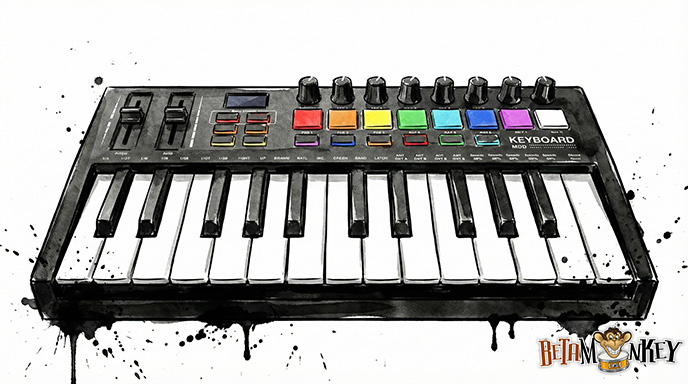 Continue building your track by adding keyboards, guitars, or other instruments. For each layer:
- Browse and audition different loops
- Drag them into your project
- Adjust the volume using the track fader to create a good mix balance
- Use panning (left/right positioning) to create space in your mix
Mixing Tip: If an instrument sounds too loud, turn down its volume fader. To pan an instrument left or right, use the pan control on the track. Most DAWs let you reset the pan to center by double-clicking or Option/Alt-clicking on the pan knob.
Step 8: Create Chord Changes
To add musical interest, you may want to create chord changes in your backing track. Here’s how:
- Position your play head where you want the chord change to occur
- Split or cut your bass and harmonic instrument tracks at that point (usually Command+T or Control+T)
- Select the region you want to transpose
- Adjust the pitch in semitones (12 semitones = one octave)
For example, moving down 2 semitones transposes the section down one whole step, while moving up 7 semitones takes you to the IV chord in the key.
Step 9: Add Percussion and Details
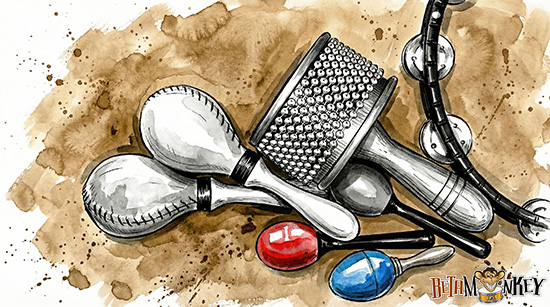 Once you have your basic track together, consider adding percussion elements like:
- Tambourine
- Shakers
- Congas
- Hand claps
These elements add texture and energy. You can often loop these percussion parts across your entire arrangement by dragging the end of the region to extend it. Not sure which percussive spice to add? Check out these percussion loops: Studio Percussion Toolbox. This loop pack will quickly add the extra “special sauce” you never knew you wanted. Honestly, that pack has such a tasty collection of percussion rhythms that you might just want to use it on its own.
Step 10: Fine-Tune Your Arrangement
Listen through your complete backing track and make adjustments:
- Add drum fills at transition points
- Edit MIDI notes if needed to create variation
- Adjust volume levels for a balanced mix
- Create loops of specific sections to focus your practice
Most DAWs have a loop function that lets you select a section and have it repeat continuously—perfect for practicing over a specific passage.
Taking It Further
The possibilities are endless. The key is to explore, experiment, and have fun. There’s no substitute for just diving in and trying different combinations of loops, editing parts, and creating arrangements that inspire you.
With a little support from some of the top session drummers we’ve recorded over the years, you’re ready to start making music with some of the world’s best.
Enjoy the grooves, and happy creating!